
Microsoft 365 for Nonprofits: A Complete Tool Breakdown


Nonprofits rely on collaboration, communication, and secure information management to deliver their missions effectively.
Yet many assume Microsoft 365 is “just email and Office apps,” when in reality the platform includes a full suite of tools designed to reduce administrative burden, strengthen teamwork, and streamline operations.
Whether your organization is already using Microsoft 365 or evaluating it for the first time, this guide breaks down the major tools included in nonprofit plans—along with real-world examples of how nonprofits can use each one.
In this guide, you’ll learn all you need to know about Microsoft 365 for nonprofits, including:
- Microsoft 365 for Nonprofits FAQ
- Microsoft 365 Tools for Nonprofits
- How Tech Impact Can Help With Microsoft 365 Implementation
- Additional Resources on Nonprofit Software
Let’s begin by reviewing what Microsoft 365 is and how your nonprofit can get access to it.
Microsoft 365 for Nonprofits FAQ
What is Microsoft 365?
Microsoft 365 is a subscription-based platform that brings together productivity apps, cloud storage, and tools for communication and collaboration. It includes familiar applications like Word, Excel, PowerPoint, and Outlook, alongside services such as OneDrive for storing and sharing files, SharePoint for organizing team resources, and Teams for chat and virtual meetings. Together, these tools help people create content, manage information, and work together from different locations. The specific apps and features available depend on the subscription plan.
Microsoft 365 serves a broad range of users, from individuals and small businesses to schools, large companies, and nonprofits. For nonprofits, its connected tools can help staff coordinate programs, collaborate on grant proposals, and keep organizational files accessible, while nonprofit pricing makes eligible plans more affordable. It isn’t the only option: similar platforms, such as Google Workspace, also bring everyday work tools together to support communication and teamwork.
Why should my nonprofit use Microsoft 365?
Microsoft 365 is a trusted, well-known platform that can meet many of your nonprofit’s everyday technology needs in one connected environment. With the right plan and setup, it can help your organization simplify work, support staff, and protect important information. Key benefits include:
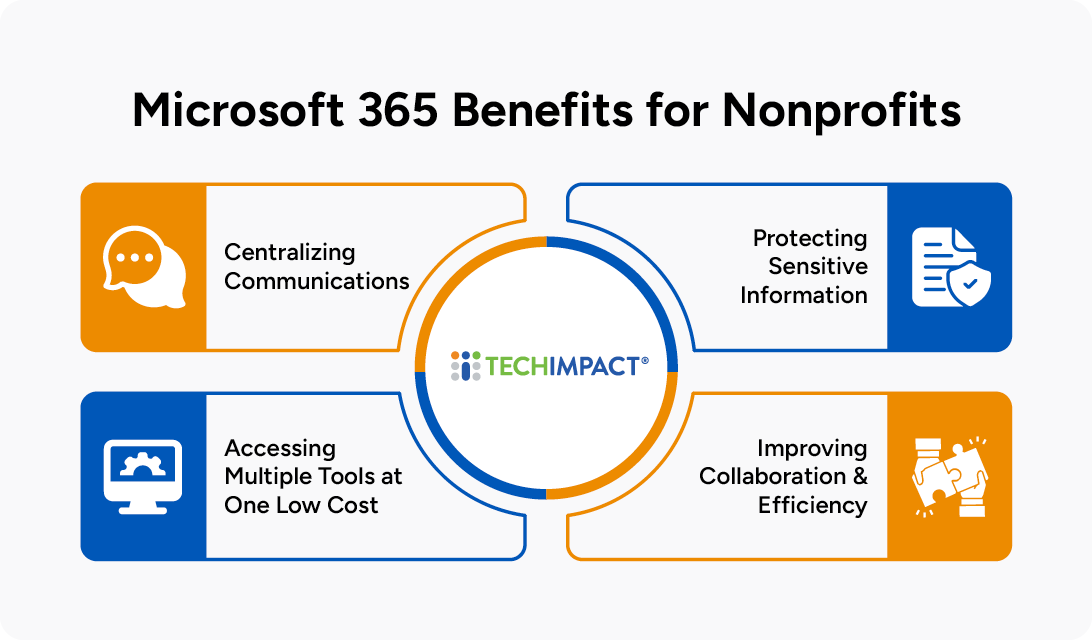
- Centralizing communications: Connect email, calendars, chat, and virtual meetings so staff can stay informed and coordinate work without juggling disconnected systems.
- Protecting sensitive information: Help safeguard donor, financial, and program data with security features such as multifactor authentication and file-sharing permissions. Additional protections depend on your plan and configuration.
- Improving collaboration and efficiency: Give staff access to shared files and the ability to edit documents together, reducing duplicate work and confusion over which version is current.
- Accessing multiple tools at a low cost: Bundle productivity, communication, and storage tools in one subscription, with grants and discounts available to eligible nonprofits. We’ll explore nonprofit pricing and plan options later in this article.
What Microsoft 365 plans and discounts are available for nonprofits?
Microsoft 365 uses subscription-based licensing: each user receives a license for a plan that determines which apps and features they can access. Eligible nonprofits can access free or discounted options, including:
- Business Basic: Free for up to 300 users, with web and mobile apps, organizational email, and cloud storage.
- Business Standard: Adds desktop versions of apps like Word and Excel for $3.50 per user/month, paid yearly.
- Business Premium: Includes Standard’s tools plus advanced security and device management for $5.50 per user/month, paid yearly—a 75% nonprofit discount.
- Enterprise plans: Discounted options are also available for organizations with more complex technology and security needs.
Check Microsoft's website for the most up-to-date pricing models.
Microsoft 365 Tools for Nonprofits
Nonprofits need tools that help staff communicate, collaborate, and manage information securely.
Microsoft 365 offers much more than email and familiar Office apps, it brings together tools that can reduce administrative work, strengthen teamwork, and simplify day-to-day operations.
Whether your nonprofit already uses Microsoft 365 or is exploring it for the first time, this guide introduces the major tools available through nonprofit plans, with practical examples of how each can support your work.
POLL: Which Microsoft 365 Tools Have You Used?
Need help setting up or managing Microsoft 365 at your nonprofit?
All features listed below are available in standard M365 nonprofit licenses:
1. Outlook - Email & Calendar Management
Outlook provides secure, professional-grade email, shared calendars, and advanced scheduling tools that keep teams aligned across programs and locations. It integrates deeply with Teams and SharePoint, making communication and scheduling seamless.
Nonprofit Use Cases:
- Manage a shared volunteers@ mailbox to streamline community engagement.
- Use shared calendars for scheduling client appointments or program shifts.
Nonprofits often coordinate between staff, volunteers, donors, and clients. Outlook keeps everyone organized with shared calendars and department mailboxes.
2. Teams - Central Hub for Communication & Collaboration
Teams consolidates chat, video meetings, calls, and file collaboration into one platform, reducing the clutter of multiple tools. Every conversation, file, and meeting stays organized within channels.
Nonprofit Use Cases:
- Case managers host virtual client meetings with secure file sharing.
- Program staff coordinate fundraising events in dedicated Teams channels with instant communication
Nonprofits with remote or hybrid workers benefit from a single communication tool that keeps programs connected and makes real-time collaboration easy.
3. SharePoint - File Storage and Intranet
SharePoint powers document libraries, intranet sites, digital forms, and automated workflows that help nonprofits manage information consistently. It goes far beyond basic cloud storage by offering metadata, advanced permissions, process automation, and content management.
Nonprofit Use Cases:
- Build an intranet for HR, onboarding, and internal communications.
- Create a board portal with permission-controlled documents and meeting materials.
Nonprofits deal with sensitive data and large volumes of documents. SharePoint ensures secure storage, better organization, and audit-ready compliance.
4. OneDrive - Private Storage and Automated Backup
OneDrive gives each staff member secure personal storage for drafts, working documents, and files not yet ready for team use. Files automatically sync across devices and can be recovered easily if deleted.
Nonprofit Use Cases:
- Writers save grant drafts and research securely before it’s ready to share
- Outreach workers access documents offline in the field.
Nonprofit staff often work from multiple locations or on the go. OneDrive ensures important files are never lost and always accessible.
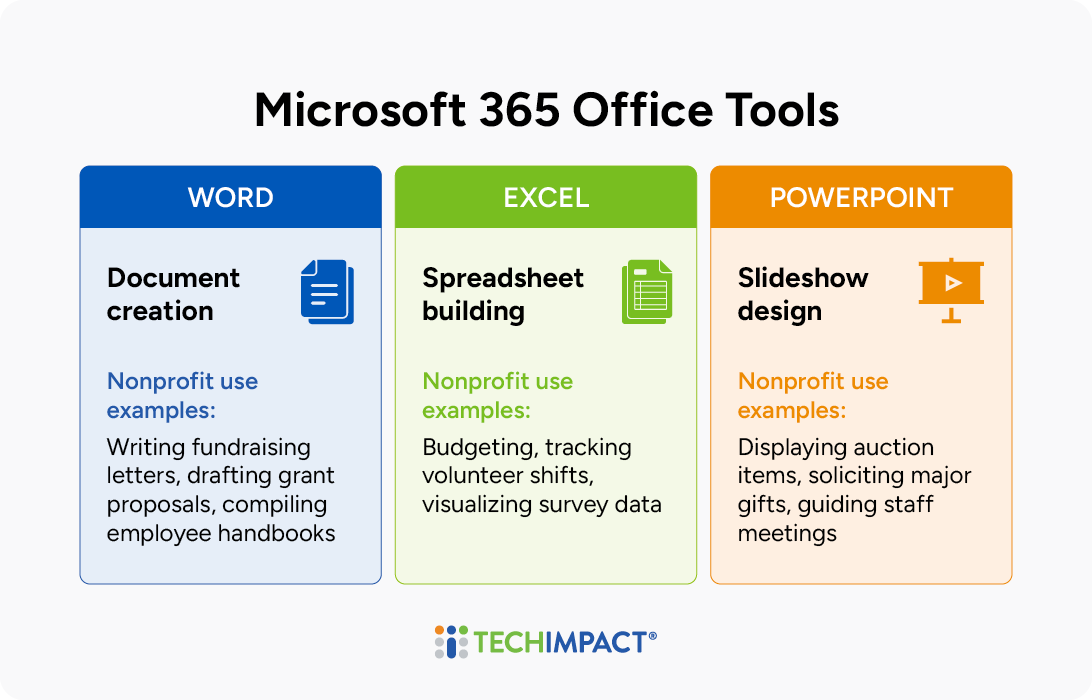
5. Word, Excel, & PowerPoint - Core Office Productivity Tools
These apps remain essential for creating documents, budgets, policies, and presentations using powerful, familiar interfaces. Cloud integration enables multiple people to edit simultaneously while keeping version history intact.
Nonprofit Use Cases:
- Finance teams collaborate on budgets in Excel.
- Development teams co-author proposals or presentations.
Nonprofits rely heavily on documentation and these tools provide professional-quality results with robust collaboration features.
6. Power Automate - Workflow Automation
Power Automate links Microsoft apps to automate repetitive tasks like notifications, approvals, or data routing. Even nontechnical users can build automated workflows.
Nonprofit Use Cases:
- Automatically send grant report reminders.
- Route expense or procurement requests for multi-level approvals.
Nonprofits often operate with limited staff, so every automated process frees up time for more mission-focused work.
7. Power Apps - Custom Apps Without Coding
Power Apps enables nonprofits to build simple mobile or web apps tailored to their specific workflows. Forms and data captured in the app can automatically feed into SharePoint or Lists.
Nonprofit Use Cases
- Create a volunteer check-in app for events.
- Build a digital client intake form that syncs with SharePoint.
Custom software is expensive and Power Apps allows nonprofits to digitize processes without hiring developers.
8. Power BI - Data Dashboards and Impact Visualizations
Power BI connects to various data sources and creates interactive dashboards for real-time insights. Nonprofits can visualize trends, measure progress, and report outcomes clearly.
Nonprofit Use Cases
- Display program data like meals served or clients housed.
- Build dashboards for board presentations or annual reports.
Funders increasingly require data-driven reporting and Power BI helps nonprofits prove impact with clarity and professionalism.
9. Forms - Survey, Intake, and Feedback Collection
Forms lets nonprofits build surveys, questionnaires, intake forms, and polls in minutes. Results flow directly into Excel or SharePoint, making analysis simple and centralized.
Nonprofit Use Cases:
- Collect volunteer sign-ups with automated notifications.
- Conduct client satisfaction surveys after program services.
Gathering feedback, volunteer info, or program data is essential for grant reporting and program improvement. Forms makes this secure and efficient.
10. Bookings - Simple and Transparent Online Scheduling
Bookings provides a self-service scheduling system that syncs with Outlook calendars and supports automated confirmations and reminders. Staff can set availability, and clients or volunteers can book open time slots without back-and-forth emails.
Nonprofit Use Cases:
- Allow clients to schedule intake sessions online.
- Set up volunteer training slots for easy registration.
Nonprofits with high appointment volume, like social service organizations, can save hours of administrative time.
11. Planner - Visual Task and Project Management
Planner uses simple boards, tasks, assignments, and due dates to help teams stay organized. It’s an easy, lightweight project management tool that works well for small to medium teams.
Nonprofit Use Cases:
- Manage every part of a fundraising event.
- Track outreach tasks for community programs.
Many nonprofits struggle with task tracking and clarity. Planner gives teams a visual way to see responsibilities, deadlines, and progress.
12. Purview, Intune, & Defender - Security and Device Management Tools
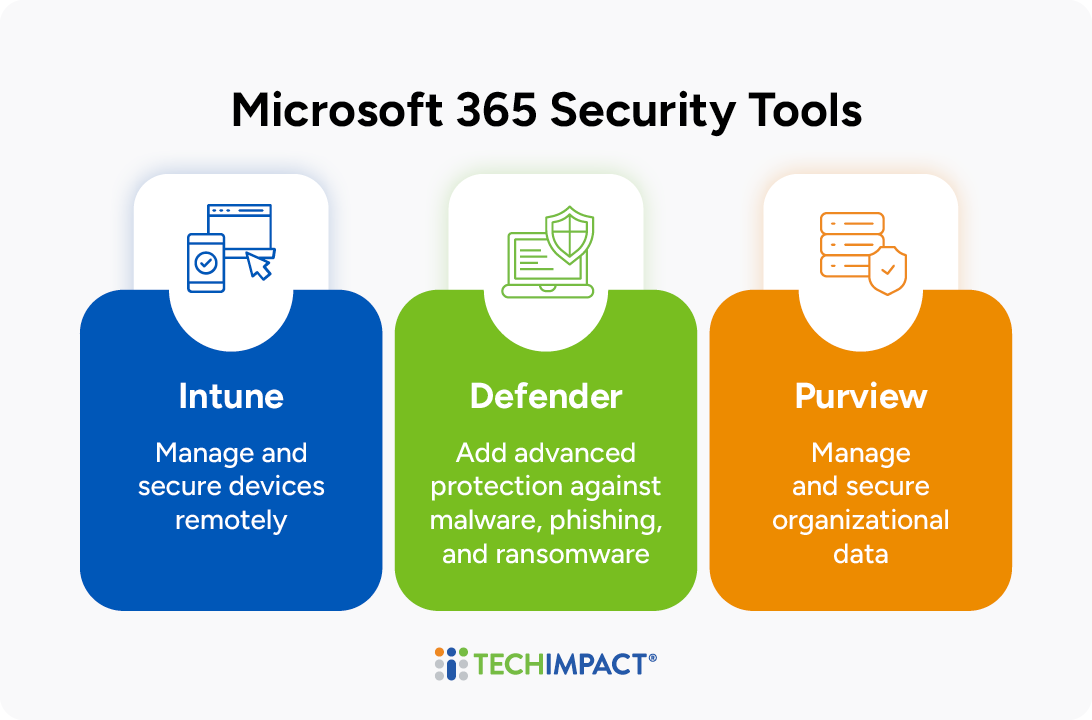
Intune allows nonprofits to manage and secure devices (laptops, phones, tablets) and apps remotely. Defender adds advanced protection against malware, phishing, and ransomware, which are major risks for nonprofits. Microsoft Purview helps manage and secure organizational data.
Nonprofit Use Cases:
- Protect staff from phishing attacks.
- Automatically detect and block suspicious activity.
- Remotely manage staff laptops with security policies.
The nonprofit sector is one of the most attacked sectors for malware, ransomware, and nefarious activity. Nonprofits hold sensitive data like donor records, client information, and financial documents that must be kept secure.
13. OneNote - Digital Notebook
OneNote helps teams capture meeting notes, research, case notes, and shared information in an organized, searchable format. Notebooks sync automatically across devices.
Nonprofit Use Cases:
- Create a shared program notebook for meeting minutes.
- Document field notes that sync instantly for supervisors.
Nonprofits often struggle to organize ideas, notes, and program documentation. OneNote provides a centralized, digital hub for all of it.
14. Stream - Video Management
Stream stores internal videos like training recordings, meeting recordings, and announcements securely within the organization. Videos can be embedded in SharePoint or Teams for easy access.
Nonprofit Use Cases:
- Host onboarding videos for new staff and volunteers.
- Share monthly updates from leadership across departments.
Nonprofit staff and volunteers need ongoing training and Stream makes it simple to centralize and reuse video content.
15. Viva Engage - Community Building and Internal Communication
Viva Engage functions like an internal social network where staff can post updates, celebrate wins, and share knowledge across teams. It helps connect employees across departments and locations.
Nonprofit Use Cases:
- Share program success stories or photos from the field.
- Celebrate staff achievements and milestones.
Nonprofits with remote or dispersed teams can strengthen culture and communication through engagement tools.
16. Loop - Flexible, Real-Time Collaboration Spaces
Loop creates collaborative workspaces with components (like lists, tables, and notes) that sync across Teams, Outlook, Word, and more. Multiple users can update content simultaneously, and the changes appear everywhere.
Nonprofit Use Cases:
- Grant teams co-edit agendas, notes, and tasks across multiple apps.
- Program managers track deliverables in one shared space.
Nonprofits juggling grant writing, program management, and planning benefit from real-time collaboration tools that keep everyone aligned.
How Tech Impact Can Help With Microsoft 365 Implementation
Tech Impact helps nonprofits implement, manage, and get more value from Microsoft 365, including migrating email and files to configuring SharePoint and Teams, strengthening security settings, and training staff. Whether an organization is adopting Microsoft 365 for the first time or improving an existing setup, Tech Impact tailors its services to support secure collaboration, efficient workflows, and long-term adoption specific to nonprofit use cases.
As a nonprofit itself, Tech Impact understands the sector’s budget constraints, staffing challenges, and mission-driven priorities, bringing practical guidance and affordable support to each implementation. Since 2003, we have supported more than 10,000 organizations through technology projects. Beyond Microsoft 365, services include managed IT, cybersecurity, data consulting and AI implementation, strategic technology planning, and website, branding, and digital strategy, all helping nonprofits connect their technology investments to greater impact.
Wrapping Up: Additional Resources on Nonprofit Software
Getting more from Microsoft 365 doesn’t mean using every tool—it means choosing the right tools for your nonprofit’s needs. Start with your biggest challenges, help staff build confidence, and expand your approach as your organization grows. With thoughtful planning, the Microsoft 365 ecosystem can help your team spend less time managing work and more time advancing your mission.
For more information on nonprofit technology, check out these resources:
- Automation for Nonprofits - What It Is, How Does it Work, and How Can It Help Me
- Creating A Culture That Values Security
- Nonprofit's Guide to Data Migration

Related Resources


All-Access Pass
Technology keeps advancing, which means we all have to keep learning and building our skills. Get more learning with less cost by getting the All-Access Pass, which grants you unlimited access to the Technology Learning Center.