
How to Set up Microsoft 365 for Nonprofits: Security Guide


Microsoft 365 gives nonprofits a flexible, cloud-based toolkit for communication, collaboration, file management, and day-to-day productivity. With applications such as Outlook, Teams, SharePoint, OneDrive, and the Office suite working together, organizations can help staff stay connected, protect important information, and work efficiently from nearly anywhere.
However, setting up Microsoft 365 for a nonprofit is not always the same as configuring it for a typical business. Nonprofit licensing and eligibility, limited IT resources, volunteer access, staff turnover, and the need to safeguard donor, client, and program data can all shape important security decisions.
In this guide, we’ll walk through how to set up Microsoft 365 for nonprofits by covering these topics:
- Initial Setup Steps for Microsoft 365 for Nonprofits
- Microsoft 365 Cybersecurity Setup Essentials
- How Tech Impact Can Help With Microsoft 365 Setup
- Additional Resources on Nonprofit Technology Configuration
The goal is not to configure everything, but to implement recommended baselines that materially reduce risk. Rather than trying to configure every available feature at once, focus first on the settings that address your nonprofit’s greatest risks and most important operational needs.
Initial Setup Steps for Microsoft 365 for Nonprofits
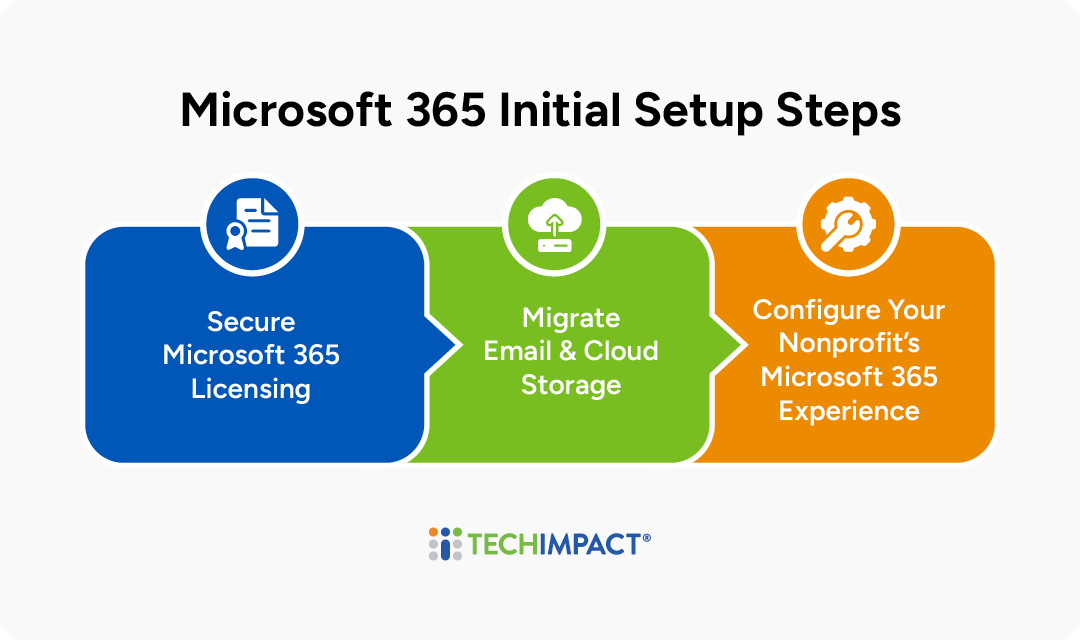
Before focusing on security, nonprofits should establish a strong Microsoft 365 foundation by securing the right licenses, migrating email and cloud storage, and configuring the platform for their organization’s needs. Completing these core setup steps helps create a more consistent, manageable environment for applying security controls:
Secure Microsoft 365 Licensing
Microsoft offers exclusive nonprofit discounts across its tiered licensing options, allowing organizations to select plans based on their staff’s needs. Eligible nonprofits can apply through Microsoft's Nonprofit Hub and review the latest pricing and availability.
Migrate Email & Cloud Storage
Migrating email and files to Microsoft 365 can significantly improve security, collaboration, and long-term sustainability. Organizations with in-house migration expertise may be comfortable managing the process themselves, particularly with support from our ten-step guide. Nonprofits without a dedicated IT manager or experienced staff member may benefit from working with a consultant such as Tech Impact. Depending on the source email system, migration tools, DNS cutover schedule, and user training needs, an email migration typically takes three to six weeks.
Configure Your Nonprofit's Microsoft 365 Experience
Microsoft 365 includes much more than Outlook for email and SharePoint for file storage. Its wide range of apps and tools can support communication, collaboration, and everyday staff workflows. You can also personalize the experience with themes that adjust the color scheme, background, and branding across the interface and documents.
POLL: Which Microsoft 365 Tool Is Most Important to Your Organization?
Need help setting up or managing Microsoft 365 at your nonprofit?
Microsoft 365 Cybersecurity Setup Essentials
Ransomware, credential theft, phishing, data leaks, and email compromise disproportionately target nonprofits, which often lack a strong security posture.
Nonprofits don’t need to configure every advanced feature in Microsoft 365 from day one. You can establish a strong, sustainable security foundation by focusing on:
• Identity security (MFA, Conditional Access)
• Data protection (Purview labels & DLP)
• Threat protection (Defender policies)
• Device management (Intune compliance & app protection)
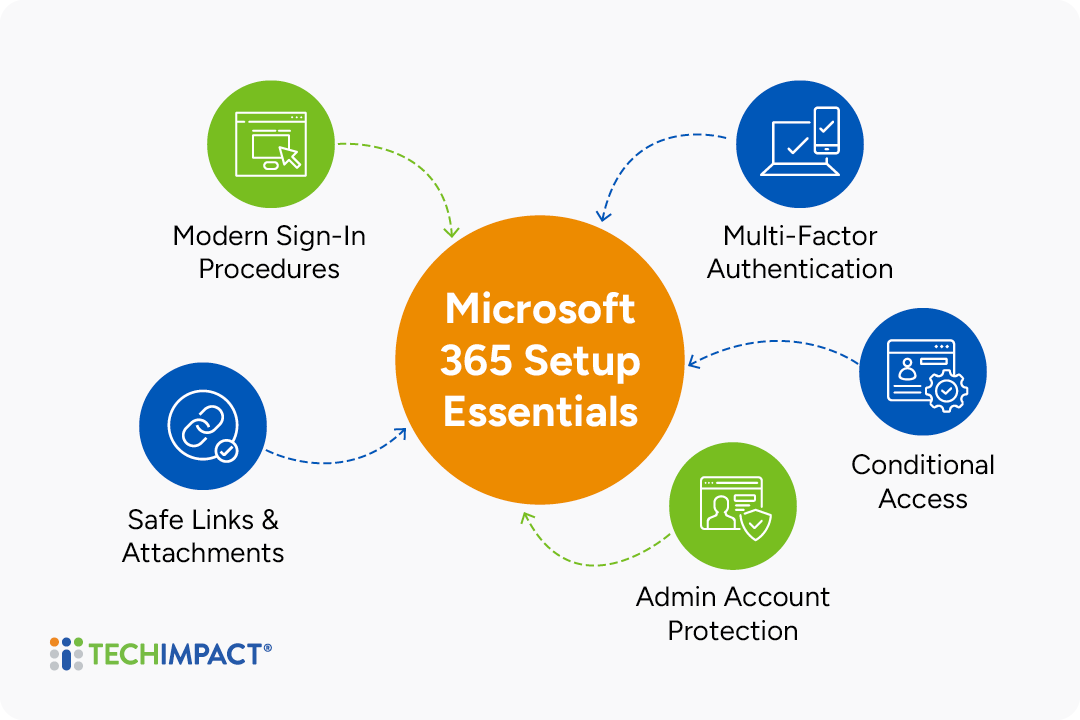
Explore straightforward steps to bolster your security stack below:
Modern Sign-In Procedures
Legacy authentication (“basic auth”) is one of the most exploited weaknesses in Microsoft 365 environments. Attackers regularly use it to bypass protections and brute-force or spray passwords. Disabling basic authentication instantly blocks enormous categories of automated attacks; combined with MFA, it often stops 99% of credential-based compromises. For nonprofits with limited resources, this is one of the highest-impact, lowest-complexity actions you can take.
Action Steps:
- Disable basic authentication
- Ensure all users including staff, volunteers, & shared mailboxes authenticate with modern OAuth-based methods that work by handing over a digital "temporary pass" called an access token, rather than using passwords.
Review sign-in logs to identify lingering legacy auth usage. IT Directors can do this through their Microsoft Entra admin center.
Multi-Factor Authentication (MFA) For Everyone
MFA is the single strongest security control available in Microsoft 365. Yet many nonprofits still either don’t enforce it or only require it for administrators. Attackers systematically target organizations without MFA because it’s far easier to compromise passwords than bypass multi-factor protections.
Most nonprofit compromises stem from stolen passwords: phishing, email spraying, or exposed credentials. MFA cuts off this attack vector almost entirely. Without it, you're operating with the digital equivalent of leaving your front door unlocked.
Action Steps:
- Use Microsoft Entra ID Conditional Access to enforce MFA for all accounts. Conditional Access acts as a Zero Trust protocol that uses if/then statements to enforce access controls across the M365 environment. "If a sign-on happens outside of my location boundary, alert IT" (more below)
- Strongly encourage or require Microsoft Authenticator, rather than SMS and/or email codes. Authenticator apps are more secure as they generate time-based codes locally on a device, rather than transmitting them across the internet where they can be intercepted.
- If your nonprofit lacks Conditional Access on its account, use "Security Defaults" as a base-line
Conditional Access
Conditional Access (CA) allows nonprofits to enforce contextual security policies based on location, risk, device status, and more. While advanced CA configurations can be complex, Microsoft recommends a baseline set that dramatically reduces common attacks.
Conditional Access enforces security only when needed, minimizing friction for staff. It also prevents attackers from logging in from unusual locations, anonymous networks, or outdated devices which are common signs of compromise.
Action Steps:
There are a number of priority Conditional Access policies you should focus on first:
- Block sign-ins from legacy authentication clients (referenced above)
- Require MFA for all users (referenced above)
- Require compliant or enrolled devices before allowing access to sensitive records like admin, finance, and HR
- Require MFa for high-risk, sign-ins or when Identity Protection labels a user as "high risk"
- Block access from countries or regions your nonprofit never works in.
- Create a "break-glass account", or emergency access account to prevent accidentally locking yourself out.
Note - One should mention a reference to some 'Break glass' type admin account, which is excluded from conditional access policy like that of MFA and almost every other MFA policy.
Admin Account Protection
Admin accounts are the crown jewels of any Microsoft 365 environment. A single admin compromise can give attackers full control over email, Teams, SharePoint, identity settings, and security tools.
Most nonprofits mistakenly assign global admin rights to regular user accounts, but this dramatically increases risk.
Separating admin identity from daily-use accounts prevents single-vector breaches (when an attacker gains access through a specific entry point) and aligns with security best practices used in enterprise environments without extra cost.
Action Steps:
- Create separate admin-only accounts for IT staff which should not be used for daily work
- Use Privileged Identity Management (PIM) to provide "just-in-time" admin access
- Limit the number of global admins to the absolute minimum required (ideally 2-3 max)
- Use role-based admin permissions so that staff only have the access they absolutely need (and no more!)
Enable Safe Links and Safe Attachments
Phishing is the #1 attack method against nonprofits, and Microsoft Defender includes two essential filtering technologies:
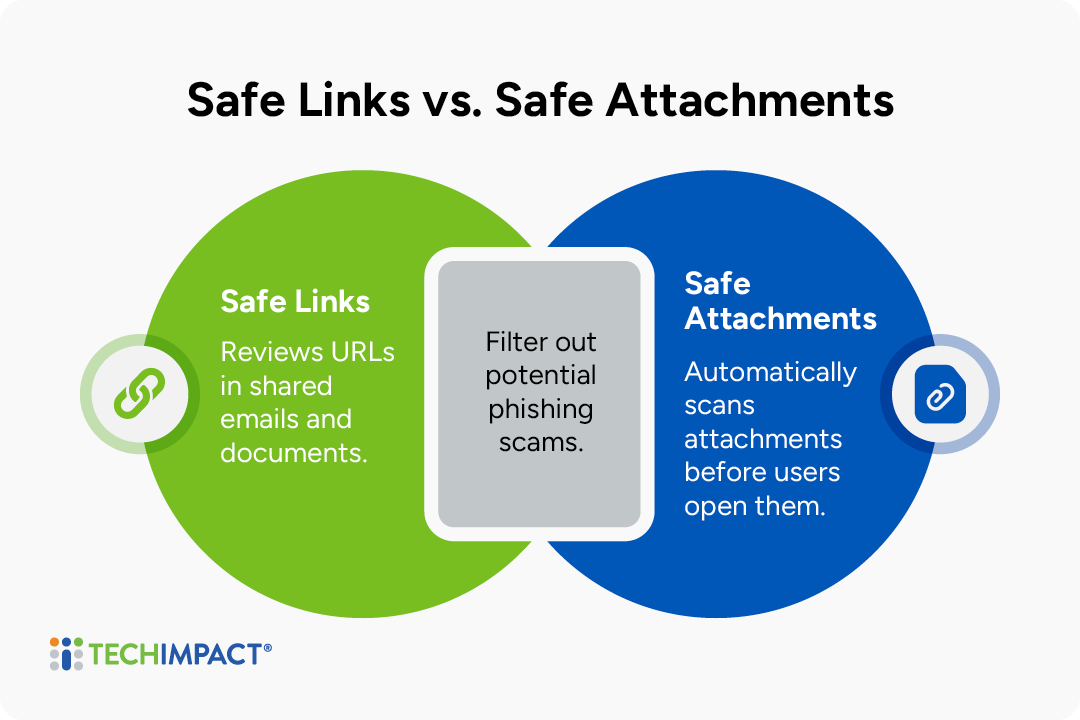
Safe Links: Safe Links reviews URLs in shared emails and documents in real time when users click and blocks malicious sites.
Safe Attachments: Safe attachments automatically scans attachments in a separate sandbox environment before a user can access it, preventing malicious attacks from reaching a users' inbox in the first place.
Action Steps:
- Turn on Safe Links for emails, Teams, and Office apps via the Microsoft Defender portal
- Enable Safe Attachments in "Dynamic Delivery" mode for minimal user disruption
- Configure these policies organization-wide, not just for specific users.
How Tech Impact Can Help With Microsoft 365 Setup
Tech Impact helps nonprofits turn Microsoft 365 security features into practical, nonprofit-focused protections. Our team can assess your current environment, identify gaps, and configure tools such as Microsoft Intune, multifactor authentication, Microsoft Entra ID, sensitivity labels, email encryption, and access policies to better protect donor, client, staff, and organizational data.
Our goal is not simply to enable more security features, but to implement the right protections in ways that align with your staff, devices, compliance requirements, and day-to-day operations.
Tech Impact’s Microsoft 365 security support is part of a broader range of nonprofit technology services, including security risk assessments, data protection and data loss prevention, endpoint and identity management, compliance support, sensitive document management, strategic advisory services, and employee cybersecurity training.
As a nonprofit ourselves, we understand the resource constraints, staffing realities, and mission-driven priorities that shape technology decisions. Our recommendations are designed to be realistic, affordable, and sustainable, whether your organization is responding to a security incident, as Midwest Assistance Program did, or seeking additional guidance for high-risk activities and long-term security planning.
Additional Resources on Nonprofit Technology Configuration
Tech Impact is dedicated to helping organizations big and small manage their cybersecurity risk. For more information on setting up nonprofit tech, check out these resources:
- Three Steps to Successful Application Systems Selection
- Nonprofits Guide To Data Migration
- The Future of Technology System Selection: Integration, Sustainability, and Community-Driven Decisions

Related Resources


All-Access Pass
Technology keeps advancing, which means we all have to keep learning and building our skills. Get more learning with less cost by getting the All-Access Pass, which grants you unlimited access to the Technology Learning Center.